
Changing the language on an Oral-B iO electric toothbrush may seem complicated at first, especially if the device is set to a language you do not understand. However, on Oral-B iO models with a built-in display, the process is quite simple and can be done directly from the toothbrush handle.
In this guide, you will learn how to change the language on an Oral-B iO, which buttons to use, what to do if you accidentally skip the correct option, and why this setting cannot always be changed from the mobile app.
Which Oral-B iO Models Allow You to Change the Language?
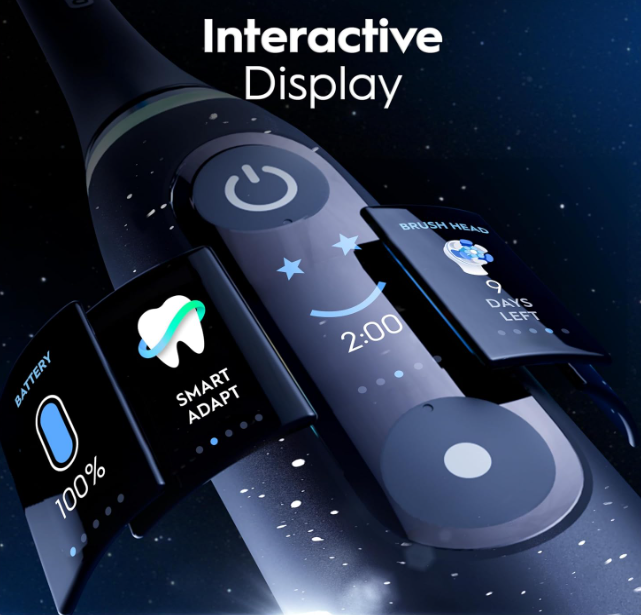
Not all Oral-B electric toothbrushes have a display. The language change feature is usually available on Oral-B iO models with an integrated screen, as these models allow you to navigate visual menus such as settings, brushing modes, reminders, and language selection.
Models with a Built-In Display
The more advanced Oral-B iO models usually include a screen on the handle. This display can show information such as:
- Selected brushing mode
- Battery level
- Brush head replacement reminders
- Settings icons
- Basic system messages
- Language options
If your toothbrush does not have a display, it may not include an internal menu for manually changing the language.
Before You Start: Identify the Oral-B iO Buttons
To change the language, you mainly need to use two buttons on the handle.
Power Button
The power button is located above the display. It is used to turn on the toothbrush, confirm selections, and enter menus.
Mode Button
The mode button is usually located below the display. It is used to scroll through the different menu options, such as brushing modes, settings, language, and back.
Understanding this difference is important: the mode button lets you move through the options, while the power button lets you enter or confirm a selection.
How to Change the Language on an Oral-B iO
The process is done directly from the toothbrush handle. You do not need tools, cables, or an internet connection.
Turn On the Toothbrush
First, press the power button or simply lift the toothbrush to activate the screen. On some Oral-B iO models, the device wakes up automatically when moved.
Once the screen is on, you can start navigating through the available options.
Enter the Settings Menu
Press the mode button several times until the settings icon or the word “Settings” appears on the screen. This menu is usually represented by a gear icon.
When you see the settings option, press the power button to enter.
Find the Language Option
Inside the settings menu, press the mode button again several times until you find the “Language” option.
When it appears on the screen, press the power button again to enter the language menu.
Select Your Preferred Language
Now use the mode button to scroll through the available languages. Depending on the model and region, the toothbrush may show different language options.
Some Oral-B iO models may offer up to 16 available languages. If you accidentally skip the language you wanted, do not worry. The menu is designed to scroll continuously, so you only need to keep pressing the mode button until the language appears again.
Confirm the Change
When you find the correct language, press the power button to confirm your selection.
After confirming, a check mark should appear on the screen. This indicates that the language has been changed successfully.
How to Exit the Settings Menu
Once the language has been confirmed, the toothbrush will return to the settings menu. To exit, press the mode button until you find the “Back” option.
When “Back” appears on the screen, press the power button. The toothbrush will return to the main menu or home screen.
Can You Change the Language from the Oral-B App?
In many cases, no. According to the original transcript, at the time of recording there was no option to change the Oral-B iO language from the smartphone app.
This means the change must be made directly from the toothbrush handle using the built-in display and physical buttons.
Why the App Does Not Always Let You Change the Language
The Oral-B app can be useful for checking brushing habits, connecting the toothbrush via Bluetooth, receiving personalized tips, or reviewing statistics. However, some internal handle settings may only be available through the device menu.
That is why, even if your toothbrush is connected to your phone, it is best to change the language directly from the Oral-B iO handle.
What to Do If You Cannot Find the Language Option
If you do not see the language option, check the following points.
Make Sure Your Model Has a Display
If your Oral-B iO does not have a display, it may not allow you to change the language from the handle. Some basic models have lights or indicators but do not include a full visual menu.
Make Sure You Are Inside Settings
Many users accidentally scroll through brushing modes instead of entering the settings menu. Look for the gear icon or the word “Settings” before trying to find the language option.
Scroll Slowly and Carefully
The menu may contain several options. Press the mode button slowly and wait for the screen to update after each selection.
Common Mistakes When Changing the Language
Although the process is simple, some mistakes are quite common.
Pressing the Wrong Button
If you press the power button when you only want to scroll, you may enter an option by mistake. Remember: use the mode button to move and the power button to confirm.
Skipping the Desired Language
This is not a serious problem. The menu allows you to keep scrolling until the option appears again.
Thinking It Must Be Done from the App
Many users look for this setting in the mobile app, but on several models the language can only be changed from the toothbrush handle.
Tips for Setting Up Your Oral-B iO Correctly
After changing the language, it is worth checking the other menu options. You can review the brushing mode, brush head status, reminders, and other useful settings.
It is also a good idea to set the correct language before using the toothbrush daily. This way, you will better understand the alerts, screen messages, and device instructions.
Conclusion
Changing the language on an Oral-B iO toothbrush with a display is quick once you know the correct steps. You simply need to turn on the toothbrush, enter settings, find the language option, scroll with the mode button, and confirm with the power button.
The most important thing to remember is that, in many cases, this setting is not changed from the mobile app but directly from the toothbrush handle. If you skip the language you want, just keep pressing the mode button until it appears again.
With the correct language selected, using your Oral-B iO will be much more comfortable, clear, and easy to understand every day.