
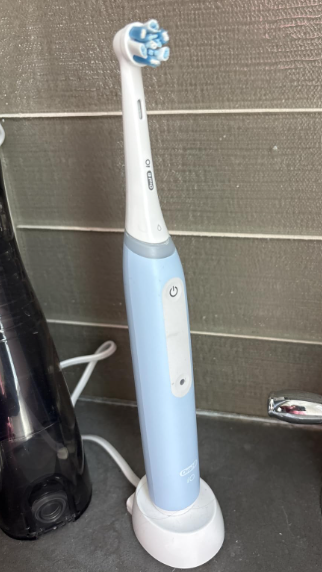
If your Oral-B iO says disconnected, refuses to connect to the Oral-B app, or keeps dropping its Bluetooth connection halfway through brushing, the good news is that the toothbrush itself is usually not broken.
Connection problems with Bluetooth-enabled Oral-B iO toothbrushes are often caused by something relatively simple: Bluetooth permissions, an app that is stuck in the background, an old pairing stored on the phone, battery-saving settings, or a pairing process that was not completed correctly.
In this guide, we’ll walk through the most common reasons an Oral-B iO keeps disconnecting, how to reconnect it to your phone, what to do when the app cannot find the toothbrush, and when the problem may actually point to a hardware issue.
Why Does My Oral-B iO Say Disconnected?
When the Oral-B app displays Disconnected, it simply means the app is not currently communicating with the toothbrush through Bluetooth.
That does not necessarily mean something is wrong.
Your iO may show as disconnected because:
- The toothbrush is turned off.
- Bluetooth is disabled on your phone.
- The Oral-B app does not have Bluetooth permission.
- The toothbrush is connected to another device.
- The app has stopped running in the background.
- Your phone has an old Bluetooth pairing stored.
- The toothbrush battery is extremely low.
- Android or iOS battery optimization is restricting the Oral-B app.
- The Oral-B app needs to be restarted or updated.
In many cases, reconnecting takes less than a few minutes.
Oral-B iO Disconnected: Quick Fix
Before changing advanced settings, try this basic reset sequence.
- Close the Oral-B app completely.
- Turn Bluetooth off on your phone.
- Wait about 10 seconds.
- Turn Bluetooth back on.
- Open the Oral-B app.
- Wake up your iO toothbrush by pressing its power button.
- Keep the toothbrush close to your phone.
- Wait several seconds for the app to reconnect.
If the toothbrush appears as connected again, the problem was probably just a temporary Bluetooth communication error.
If it still says disconnected, continue with the troubleshooting steps below.
Check Whether Your Oral-B iO Supports Bluetooth
Before troubleshooting the app, make sure your specific iO model actually supports the Bluetooth features you’re trying to use.
The Oral-B iO range includes multiple models with different features. Higher-end versions generally include extensive app connectivity and real-time brushing feedback, while some entry-level versions may have fewer connected features.
Therefore, don’t assume that every Oral-B iO model offers exactly the same Bluetooth functionality.
Check:
- Your toothbrush model number
- The original packaging
- Your Oral-B manual
- The connectivity options shown in the Oral-B app
If you’ve previously connected the same toothbrush successfully, however, compatibility obviously isn’t the likely cause.
Make Sure Bluetooth Is Turned On
This sounds obvious, but Bluetooth being accidentally disabled is one of the easiest explanations for an Oral-B iO showing as disconnected.
On an iPhone, open:
Settings → Bluetooth
Make sure Bluetooth is switched on.
On Android, the exact path varies by manufacturer but is generally:
Settings → Connected devices → Bluetooth
or:
Settings → Connections → Bluetooth
Bluetooth should remain enabled while you’re using the Oral-B app.
You usually don’t need to manually select the toothbrush from the phone’s standard Bluetooth menu every time you brush. The Oral-B app normally manages the connection.
Allow the Oral-B App to Use Bluetooth
Your phone can have Bluetooth enabled while simultaneously preventing a particular app from using it.
This is especially worth checking if your Oral-B iO stopped connecting after:
- Updating your phone
- Updating iOS
- Updating Android
- Reinstalling the Oral-B app
- Changing privacy settings
On iPhone
Go to:
Settings → Privacy & Security → Bluetooth
Find Oral-B and make sure Bluetooth access is enabled.
Depending on the current version of iOS and the Oral-B app, some options may appear in slightly different locations.
On Android
Go to:
Settings → Apps → Oral-B → Permissions
Allow any Bluetooth or nearby-device permissions required by the app.
On newer Android versions, Bluetooth devices may appear under a permission called Nearby devices rather than simply Bluetooth.
After changing permissions, completely close and reopen the Oral-B app.
Keep the Toothbrush Close to Your Phone
Bluetooth has a decent operating range, but pairing is generally more reliable when the devices are close together.
For troubleshooting, put your smartphone within a few feet of the toothbrush.
Also try moving away from:
- Wireless routers
- Multiple Bluetooth accessories
- Smart home hubs
- Other phones
- Tablets previously paired with the toothbrush
Bluetooth interference isn’t the most common cause of an Oral-B iO disconnecting, but simplifying the environment makes troubleshooting easier.
Wake the Toothbrush Before Connecting
Your Oral-B iO may enter a low-power state when it isn’t being used.
If the toothbrush is asleep, the app may continue to show Disconnected until the toothbrush wakes up.
Press the power button or interact with the toothbrush and wait several seconds.
Then check the Oral-B app again.
This is especially important if you’re opening the app several minutes before brushing.
Restart the Oral-B App
Apps occasionally freeze or lose communication with connected devices.
Closing and reopening the Oral-B app can refresh the Bluetooth connection.
Don’t simply return to your phone’s home screen. Fully close the application from the recent-apps screen and then reopen it.
After reopening the app:
- Keep Bluetooth enabled.
- Wake up your toothbrush.
- Keep the toothbrush near the phone.
- Wait for the connection indicator to change.
Restart Your Phone
If restarting the app doesn’t work, restart your smartphone.
A reboot clears temporary Bluetooth processes and can solve connection problems affecting not only Oral-B devices but also headphones, smartwatches, speakers, and other Bluetooth accessories.
Once your phone has restarted:
- Turn Bluetooth on.
- Open the Oral-B app.
- Wake your iO toothbrush.
- Try connecting again.
Forget the Existing Bluetooth Connection
An old or corrupted Bluetooth pairing can cause a particularly frustrating situation: your phone remembers the toothbrush, but the Oral-B app cannot communicate with it correctly.
Removing the existing connection and pairing again may fix it.
Open your phone’s Bluetooth settings and look for an Oral-B device associated with the toothbrush.
If one appears, choose Forget, Unpair, or Remove Device.
Then reopen the Oral-B app and follow its normal procedure for adding or pairing a toothbrush.
Important
It is generally better to follow the pairing instructions inside the Oral-B app rather than attempting to configure everything manually through your phone’s Bluetooth menu.
The app needs to recognize the toothbrush correctly to provide connected brushing features.
Reconnect the Oral-B iO Through the App
If you’ve removed the old pairing, you’ll need to connect the toothbrush again.
Although the exact menu can change as Oral-B updates its app, the process normally involves opening the app and selecting the option for adding or connecting a toothbrush.
Keep the toothbrush close to your phone and activate it when the app asks you to do so.
Give the devices several seconds to discover each other.
Avoid repeatedly pressing buttons during the pairing process unless the app specifically tells you to.
Oral-B iO Connected but App Says Disconnected
Sometimes your smartphone appears to recognize the toothbrush while the Oral-B app still says Disconnected.
This can happen because the phone’s Bluetooth connection and the application’s connection aren’t exactly the same thing.
Try this sequence:
- Close the Oral-B app.
- Remove the toothbrush from your phone’s remembered Bluetooth devices if it appears there.
- Restart your phone.
- Turn Bluetooth back on.
- Open the Oral-B app.
- Pair the toothbrush through the app.
This gives both devices a clean connection instead of trying to reuse an old pairing.
Oral-B iO Keeps Disconnecting During Brushing
A toothbrush that connects successfully but disconnects every few minutes can be more difficult to diagnose.
The problem may involve your phone’s background-app management rather than the toothbrush itself.
Common causes include:
- Aggressive battery optimization
- Background app restrictions
- Bluetooth permission changes
- Low phone battery
- Low toothbrush battery
- App crashes
- Operating-system compatibility problems
Start by making sure both devices have adequate battery charge.
Then check whether your phone is restricting the Oral-B app.
Disable Battery Optimization for the Oral-B App
Android phones can be particularly aggressive about closing apps running in the background.
This helps conserve battery, but it can interrupt Bluetooth communication.
Depending on your phone, look under:
Settings → Apps → Oral-B → Battery
You may see options such as:
- Unrestricted
- Optimized
- Restricted
- Allow background activity
If the app frequently disconnects while brushing, allowing it to run normally in the background may improve reliability.
Menus vary significantly between Samsung, Google Pixel, Xiaomi, OnePlus, Motorola and other Android manufacturers.
Check Your Toothbrush Battery
A nearly depleted battery may also contribute to unusual behavior.
Place your Oral-B iO on its charger and give it enough time to reach a reasonable charge level before troubleshooting further.
Then try reconnecting.
If your toothbrush:
- Doesn’t charge
- Randomly powers off
- Has an unstable display
- Repeatedly restarts
the underlying issue may be related to the toothbrush or battery rather than Bluetooth alone.
Update the Oral-B App
Software updates commonly include:
- Bug fixes
- Bluetooth improvements
- Compatibility improvements
- Support for newer Android versions
- Support for newer iOS versions
Check the Apple App Store or Google Play Store and install any available update for the Oral-B app.
After updating it, restart the app and reconnect your toothbrush.
Update Your Phone
The opposite situation is also possible.
An outdated smartphone operating system can create compatibility problems with newer versions of an app.
Check your phone for available system updates.
However, it’s worth noting that connection problems can occasionally appear immediately after a major iOS or Android update too. In those cases, updating the Oral-B app becomes particularly important because developers may release compatibility fixes.
Oral-B iO Won’t Connect After Changing Phones
If you’ve recently bought a new phone, your toothbrush may still have pairing information associated with the previous device.
Bluetooth devices can sometimes become confused when two previously paired phones are nearby.
Turn Bluetooth off on the old phone or remove the Oral-B connection from it.
Then pair the toothbrush with your new phone using the Oral-B app.
During troubleshooting, keep the old device away from the toothbrush if possible.
Can an Oral-B iO Connect to Two Phones?
Using one Bluetooth accessory across multiple smartphones can sometimes cause reconnection issues.
Even if a particular configuration technically works, switching frequently between devices can complicate Bluetooth pairing.
If one Oral-B iO is being used with multiple smartphones and you’re experiencing constant disconnections, simplify the setup.
Temporarily enable Bluetooth only on the phone you want to use.
Then reconnect the toothbrush to that device.
Oral-B App Can’t Find My Toothbrush
If the app doesn’t find the toothbrush at all, work through these checks:
- Make sure the toothbrush is charged.
- Turn Bluetooth on.
- Allow Bluetooth permissions.
- Allow nearby-device permissions on Android if requested.
- Wake up the toothbrush.
- Move the toothbrush closer to the phone.
- Restart the Oral-B app.
- Restart your smartphone.
- Remove old Oral-B Bluetooth pairings.
- Try the pairing process again.
If none of these steps works, testing with another compatible smartphone can be useful.
If the toothbrush connects normally to another phone, your original phone or its software settings are probably contributing to the problem.
If no phone can detect the toothbrush, the toothbrush deserves closer attention.
Should Location Services Be Enabled?
Some Android devices and older Android software configurations may associate Bluetooth device scanning with location-related permissions.
The exact requirements depend on your Android version and the Oral-B app version.
If the app specifically requests location or nearby-device access during setup, review and enable the permissions required for Bluetooth discovery.
On newer Android versions, Nearby devices permissions have reduced the reliance on location permissions for many Bluetooth operations.
Why Does My Oral-B iO Disconnect When the Screen Turns Off?
If the connection is stable while you’re looking at the app but disappears after locking your phone, background restrictions may be responsible.
Check:
- Battery optimization
- Background activity
- Low Power Mode
- Battery Saver
- App permissions
On Android, allow the Oral-B app to continue operating in the background.
On iPhone, temporarily disabling Low Power Mode can help determine whether power management is contributing to the problem.
This doesn’t necessarily mean you must permanently change your battery settings. We’re mainly trying to isolate the cause.
Does the Oral-B iO Need Wi-Fi?
No. The toothbrush communicates with your smartphone primarily through Bluetooth for its direct connected features.
Your phone may still require internet access for certain app functions, synchronization, account services, updates, or online content.
But your toothbrush does not normally connect directly to your home Wi-Fi network like a laptop or smart TV.
So if your Oral-B iO says disconnected, troubleshooting Bluetooth should generally come before troubleshooting your Wi-Fi router.
Can You Use Oral-B iO Without the App?
Yes.
One of the most important things to understand about an Oral-B iO connection problem is that Bluetooth is not required for normal brushing.
You can still brush your teeth if the app isn’t connected.
Depending on your specific iO model, the toothbrush itself may provide features such as:
- Multiple brushing modes
- Pressure feedback
- Brushing timer
- Interactive display functions
- Cleaning-performance feedback
The app primarily adds connected features such as brushing tracking, coaching and additional feedback on supported models.
So an app connection failure doesn’t automatically make the toothbrush unusable.
Will My Brushing Data Sync Later?
This depends on the specific Oral-B iO model, software version and how brushing-session data is handled.
Some connected toothbrush features can store or synchronize certain information differently, so you shouldn’t assume every missed live connection will be reconstructed perfectly afterward.
If tracking matters to you, opening the Oral-B app and confirming that the toothbrush is connected before beginning your brushing session is the safest approach.
Should I Reinstall the Oral-B App?
Reinstalling should usually come later in the troubleshooting process because it can require signing back into your account and reconfiguring the toothbrush.
Before reinstalling, try:
- Restarting Bluetooth.
- Restarting the app.
- Restarting your phone.
- Removing the existing pairing.
- Pairing again.
If none of those steps helps, reinstalling the Oral-B app may clear corrupted application data.
Before doing so, make sure you know the login information for any Oral-B account you use.
Oral-B iO Bluetooth Not Working After an App Update
If your problems began immediately after updating the Oral-B app, the timing could be significant.
First restart both the phone and application.
Then check:
- Bluetooth permissions
- Nearby-device permissions
- Background activity
- Whether your toothbrush still appears correctly inside the app
Updates can occasionally reset permissions or introduce temporary compatibility issues.
Check the app store periodically for another update because small corrective releases often follow larger software updates.
Oral-B iO Bluetooth Not Working After an iPhone Update
Major iOS updates can sometimes alter permissions or Bluetooth behavior.
If your iO stopped connecting after updating your iPhone:
Step 1: Check Bluetooth
Go to:
Settings → Bluetooth
Make sure it’s enabled.
Step 2: Check Oral-B permissions
Review the privacy permissions granted to the Oral-B app.
Step 3: Update Oral-B
Install the newest available version of the app.
Step 4: Restart the iPhone
Restarting clears temporary Bluetooth processes.
Step 5: Re-pair the toothbrush
If necessary, remove the old Bluetooth pairing and connect it again through the Oral-B app.
Oral-B iO Bluetooth Not Working on Android
Android troubleshooting is slightly different because manufacturers can customize Bluetooth and battery-management behavior.
If your Oral-B iO repeatedly disconnects on Android, check:
Bluetooth permissions
Allow Bluetooth and Nearby devices access where required.
Battery settings
Prevent aggressive power management from constantly closing the Oral-B app.
Background activity
Make sure the application can operate when it isn’t directly visible on screen.
Bluetooth cache
Restarting the phone will resolve many temporary Bluetooth-cache problems without requiring advanced configuration changes.
App updates
Use the latest stable version available through Google Play.
How to Know Whether the Toothbrush Is the Problem
Most connection failures are software-related, but a Bluetooth hardware problem is possible.
The toothbrush itself becomes more suspicious if:
- Multiple compatible smartphones cannot find it.
- The connection stopped permanently without any phone or app changes.
- The toothbrush also has charging or power problems.
- The toothbrush constantly reboots.
- Bluetooth connectivity has never worked despite correct setup.
- A factory reset or complete re-pairing does not help.
Testing the toothbrush with another compatible phone is one of the easiest ways to separate a phone-related issue from a toothbrush-related problem.
Should You Factory Reset an Oral-B iO?
A reset can sometimes resolve persistent software or pairing issues, but the reset procedure varies between iO models.
We wouldn’t recommend blindly holding random buttons because you may change settings rather than performing the intended reset.
Instead, identify your exact iO model and follow the reset procedure provided for that model in its official documentation.
After resetting, you’ll normally need to pair the toothbrush with the Oral-B app again.
When Should You Contact Oral-B Support?
Consider contacting Oral-B if you’ve tried all the standard troubleshooting steps and the toothbrush still cannot connect.
Before contacting support, have these details ready:
- Exact Oral-B iO model
- Serial number if available
- Smartphone model
- Android or iOS version
- Oral-B app version
- Approximate purchase date
- Description of when the connection stopped working
Also explain whether another phone was able to detect the toothbrush.
That detail can dramatically narrow down the problem.
Oral-B iO Disconnected Troubleshooting Checklist
If you want the shortest possible troubleshooting route, we’d try these steps in this order:
- Charge the toothbrush.
- Wake up the iO.
- Turn Bluetooth off and back on.
- Confirm Oral-B Bluetooth permissions.
- Keep the phone next to the toothbrush.
- Force-close and reopen the Oral-B app.
- Restart your phone.
- Update the Oral-B app.
- Remove the old Bluetooth pairing.
- Pair the toothbrush again through the app.
- Check battery and background-app restrictions.
- Test the toothbrush on another compatible smartphone.
Most connection problems should become much easier to diagnose somewhere within this sequence.
Is an Oral-B iO Disconnection a Serious Problem?
Usually, no.
Bluetooth connectivity adds useful smart features to supported Oral-B iO toothbrushes, but it isn’t required for the toothbrush’s primary job.
Even when the Oral-B app says Disconnected, you can normally continue brushing.
The issue becomes more important if the toothbrush is experiencing other symptoms at the same time, such as:
- Failure to charge
- Random shutdowns
- Display problems
- Repeated restarts
- Buttons not responding
In those situations, the Bluetooth problem may be part of a broader hardware issue.
Final Thoughts: Fixing an Oral-B iO That Keeps Disconnecting
When an Oral-B iO is disconnected, start with the simple possibilities before assuming the toothbrush has failed.
Bluetooth permissions, an inactive toothbrush, background-app restrictions, outdated software and corrupted pairings account for many connection problems.
We’d start by restarting Bluetooth and the Oral-B app, checking permissions, and making sure the toothbrush has enough charge. If that doesn’t work, remove the existing pairing and reconnect the toothbrush through the Oral-B app.
For an iO that keeps disconnecting during brushing, focus particularly on battery optimization and background-app restrictions.
And remember: even without Bluetooth, your Oral-B iO can still function as an electric toothbrush. The connection mainly affects the smart tracking and coaching features available on compatible models.
Frequently Asked Questions
Why does my Oral-B iO keep saying disconnected?
The Oral-B app may display Disconnected when the toothbrush is asleep, Bluetooth is disabled, permissions are missing, the app has been closed by your phone, or the previous pairing has become unstable. Wake the toothbrush, restart Bluetooth and reopen the app before attempting a complete re-pair.
How do I reconnect my Oral-B iO to the app?
Turn Bluetooth on, make sure the Oral-B app has the necessary permissions, wake the toothbrush and open the app. If it doesn’t reconnect automatically, remove the previous pairing and follow the app’s instructions to add the toothbrush again.
Why won’t my Oral-B iO connect to Bluetooth?
Possible causes include a low toothbrush battery, missing Bluetooth permissions, another nearby phone attempting to connect, an outdated Oral-B app, battery optimization or a corrupted Bluetooth pairing. Testing the toothbrush with another compatible phone can help determine whether the issue is with the toothbrush or your smartphone.
Can I use my Oral-B iO without Bluetooth?
Yes. The toothbrush can still be used for normal brushing without being connected to the Oral-B app. However, connected coaching, brushing tracking and certain smart features available on compatible models may not be available while disconnected.
Why does my Oral-B iO disconnect when my phone screen turns off?
Your smartphone may be restricting the Oral-B app’s background activity to conserve battery. This is particularly common on some Android phones. Check the app’s battery optimization and background-activity settings and allow the Oral-B app to remain active while you’re brushing.