
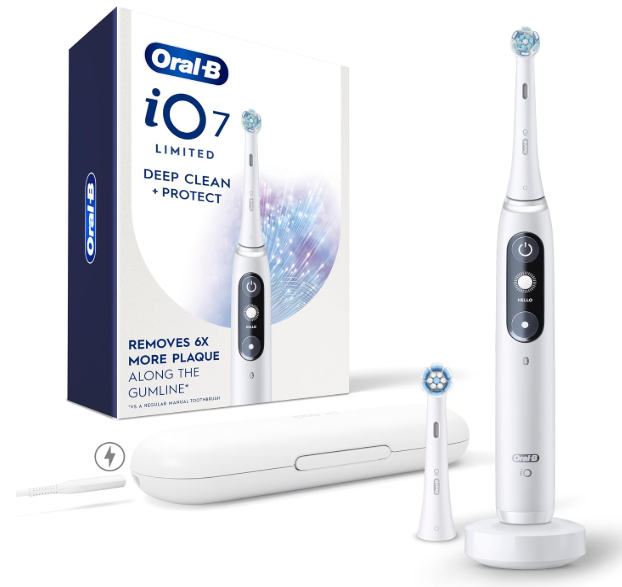
If your Oral-B iO7 toothbrush is displaying the wrong language, don’t worry. Whether you accidentally selected German, Spanish, French, or another language during setup, you can change it directly from the toothbrush handle.
The Oral-B iO7 change language process is straightforward once you understand how the interactive display and control buttons work. You don’t need to download additional software, connect your toothbrush to a computer, or perform a factory reset.
In this guide, we’ll explain how to change the display language on your Oral-B iO Series 7, switch back to English, navigate unfamiliar menus, and troubleshoot common language-setting problems.
Can You Change the Language on the Oral-B iO7?
Yes. The Oral-B iO Series 7 allows users to change the display language through its built-in Settings menu.
Unlike basic electric toothbrushes that rely entirely on indicator lights, the iO7 features an interactive black-and-white display that provides information about brushing modes, battery status, and device settings.
The language option is part of this menu system, so you can change the language without resetting the toothbrush.
The basic process involves:
- Activating the toothbrush display.
- Opening the Settings menu.
- Finding the Language option.
- Selecting your preferred language.
- Confirming the selection.
The most important detail is understanding the two control buttons on the handle.
How to Change Language on Oral-B iO7
Follow these instructions to change your Oral-B iO7 display language.
Step 1: Wake Up the Toothbrush Display
Start by picking up your Oral-B iO7 toothbrush or removing it from its charging stand.
The display should activate automatically. If it remains dark, press the power button briefly to wake the device.
You should now see the interactive screen.
For the following steps, keep the toothbrush out of brushing operation so you can navigate its menus.
Step 2: Find the Settings Menu
Your Oral-B iO7 has two primary buttons:
- Power button: The upper button, used to start the toothbrush and confirm menu selections.
- Mode button: The lower button, used to move between brushing modes and menu options.
With the display awake, press the lower mode button repeatedly.
Continue scrolling past the available brushing modes until you reach the Settings option.
Depending on the language currently selected, this option may have a different name. However, the Settings icon remains useful for identifying the correct menu.
Step 3: Open Settings
Once Settings appears on the display, press the upper power button.
This confirms the highlighted option and opens the Settings menu.
You should now have access to options such as Bluetooth settings, light ring customization, language selection, and factory reset.
Step 4: Locate the Language Option
Use the lower mode button again to scroll through the Settings options.
Look for the Language option, represented by a speech-bubble-style icon.
When you find it, press the upper power button to enter the language selection menu.
You should now see the languages available on your device.
Step 5: Choose Your Preferred Language
Press the lower mode button repeatedly to browse the language options.
For example, if you want to change your Oral-B iO7 language to English, continue scrolling until English appears.
If you accidentally pass the correct language, continue using the mode button to cycle through the available choices.
The languages displayed can vary depending on the toothbrush version and regional configuration.
Step 6: Confirm Your Selection
Once your preferred language is displayed, press the upper power button.
The toothbrush should confirm your selection and update the display language.
A confirmation indicator may appear before the toothbrush returns to the Settings menu.
You can then navigate to Back to leave Settings.
That’s it! Your Oral-B iO7 should now display its menus in your chosen language.
Quick Reference: Oral-B iO7 Language Settings
| Action | Button or instruction |
|---|---|
| Activate the display | Pick up the toothbrush or wake it |
| Navigate through menus | Lower mode button |
| Open Settings | Upper power button |
| Find Language | Scroll using the mode button |
| Open language selection | Upper power button |
| Browse available languages | Lower mode button |
| Confirm language | Upper power button |
| Exit Settings | Select Back |
This reference is especially useful when the toothbrush is configured in an unfamiliar language.
How to Change Oral-B iO7 Language Back to English
One of the most common issues occurs when someone accidentally chooses the wrong language during the initial setup.
For example, imagine turning on a new Oral-B iO7 and selecting German instead of English.
Now the entire interface displays German text, making it difficult to find the correct settings.
Fortunately, you can navigate using the symbols rather than the words.
Method 1: Use the Settings and Language Icons
We recommend this method when you cannot understand the current display language.
- Wake up the toothbrush.
- Press the lower mode button until the Settings icon appears.
- Select the icon with the upper power button.
- Scroll through the available settings.
- Look for the speech-bubble icon representing Language.
- Select it using the power button.
- Scroll until you find English.
- Confirm by pressing the power button.
The language should change after confirmation.
Method 2: Recognize the Current Language
Sometimes it helps to recognize the word used for language in the current interface.
Here are some common translations:
| Language | Word for Language |
|---|---|
| English | Language |
| Spanish | Idioma |
| German | Sprache |
| French | Langue |
| Italian | Lingua |
| Portuguese | Idioma |
| Dutch | Taal |
| Polish | Język |
These translations can help you recognize a menu, although the exact wording and available languages on your toothbrush may differ.
If you cannot recognize any text, use the menu icons instead.
Where Is the Language Setting on Oral-B iO7?
The language setting is located inside the toothbrush’s interactive Settings menu.
The navigation path is:
Main Display → Settings → Language → Select Language → Confirm
Unlike some electronic devices, the iO7 does not have a separate physical language button.
Instead, you navigate through the interface using the same two buttons that control brushing modes and menu selection.
This arrangement makes the toothbrush relatively simple to operate once you become familiar with the controls.
Understanding the Settings Icon
On compatible Oral-B iO displays, the Settings icon has a small star-like or asterisk-style appearance.
It appears alongside the available brushing modes when you scroll through the main options.
Selecting this icon opens the configuration menu.
Understanding the Language Icon
The Language option is represented by a speech-bubble-style symbol.
It appears inside the Settings menu rather than alongside the normal brushing modes.
This distinction is important because users sometimes stop scrolling before they reach Settings.
Can You Change the Oral-B iO7 Language Using the App?
The Oral-B iO7 supports Bluetooth connectivity and can connect to the Oral-B smartphone app.
However, the standard method for changing the toothbrush’s display language is through the handle itself, not through the app.
The app offers various features associated with brushing habits, tracking, and personalization, but its interface language should not be confused with the toothbrush display language.
Oral-B App Language vs. Toothbrush Language
There are two separate interfaces to consider.
| Feature | Oral-B iO7 handle | Oral-B app |
|---|---|---|
| Interactive display | Yes | Smartphone screen |
| Brushing feedback | Yes | Yes |
| Language-related interface | Built-in language selection | App interface language |
| Change toothbrush display language | Through handle Settings | Not the standard supported method |
| Bluetooth connection required | No | Yes, for connected features |
If your smartphone app is already in English but the toothbrush displays German, changing your phone’s language may not solve the problem.
Instead, adjust the toothbrush’s language directly using its built-in menu.
Oral-B iO7 Language Change Not Working: Solutions
Occasionally, the language menu may not behave as expected.
You might struggle to find Settings, encounter an unresponsive button, or notice that your preferred language does not appear.
Let’s explore the most common problems and how to resolve them.
Problem 1: You Cannot Find the Settings Menu
If Settings does not appear, first make sure the toothbrush display is awake and that the brush is not actively running.
Next, use the lower mode button to move through the options.
Remember that the menu can include multiple brushing modes before Settings appears.
Avoid repeatedly pressing the upper power button because that button is generally used for selection and starting or stopping brushing.
Solution: Use the lower button to navigate and the upper button to confirm.
Problem 2: The Display Is in a Language You Don’t Understand
This is particularly common when the wrong language is chosen during initial setup.
If you cannot read the screen, focus on the symbols.
Find the Settings icon, open the menu, and look for the speech-bubble-style Language icon.
Once you enter the language menu, scroll through the available options until you recognize your preferred language.
You do not need to understand every menu label to complete the process.
Problem 3: English Is Missing From the Language List
If you cannot find English, continue cycling through the complete list before assuming the option is unavailable.
Some devices may offer different language configurations depending on the market in which they were sold.
If English genuinely does not appear after you have checked every available option, verify the exact model and regional version of your toothbrush.
You can also contact Oral-B support to ask which display languages your particular device supports.
Problem 4: The Language Does Not Change After Selection
Sometimes users highlight a language but forget to confirm it.
On the Oral-B iO7, browsing options and selecting options are separate actions.
The lower button moves through the available choices, while the upper button confirms the highlighted selection.
Solution: Return to the Language menu, select the desired language, and press the power button to confirm.
Then exit Settings and check the displayed text.
Problem 5: The Toothbrush Buttons Are Not Responding
If pressing the mode button does nothing, check whether the toothbrush is charged and functioning normally.
Try the following:
- Place the toothbrush on its compatible charger.
- Allow it to charge if the battery is depleted.
- Remove it from the charger and wake the display.
- Make sure the toothbrush is not actively brushing.
- Try navigating the menu again.
If neither button responds during normal use, there may be a separate power, button, or hardware issue.
Problem 6: The Display Turns Off Before You Finish
The toothbrush display can become inactive after a period without interaction.
If the screen turns off while navigating, wake it again and return to the Settings menu.
Keep the device in your hand while selecting the desired option.
The language menu should not require an extended uninterrupted setup process.
Should You Reset the Oral-B iO7 to Change Language?
No. A factory reset is normally unnecessary if your only goal is changing the display language.
The toothbrush provides a dedicated language-setting option.
A factory reset is a broader troubleshooting action that may remove personalized settings and require you to configure the device again.
We recommend changing the language through the normal Settings menu first.
When Might a Factory Reset Be Appropriate?
A reset might be considered if the toothbrush has a persistent software problem and conventional troubleshooting has failed.
Examples include unusual menu behavior or settings that repeatedly fail to operate correctly.
However, if the display or controls are malfunctioning, consult the instructions for your exact model or contact Oral-B support before resetting.
Do not select Factory Reset merely because you cannot recognize the language currently displayed.
The Language option is separate from the reset function.
What Languages Are Available on the Oral-B iO7?
The exact language options may depend on the device version and market.
Oral-B toothbrushes are distributed internationally, so some versions support multiple European and other languages.
However, not every language is necessarily available on every toothbrush.
The most reliable approach is to open the Language menu and inspect the options offered by your particular device.
Can You Add a Language That Is Missing?
The Oral-B iO7 does not provide a normal user-facing function for manually installing custom language packs.
If your preferred language is missing, there is no guaranteed way to add it through the standard Settings menu.
You should also avoid unofficial firmware files or unsupported modification methods.
If language availability is important, contact the manufacturer for information about your exact regional model.
Does Changing the Language Affect Brushing Modes?
Changing the display language should not alter the toothbrush’s cleaning performance.
The Oral-B iO7 continues to use the same brushing technology and available modes regardless of the language displayed.
For example, selecting English instead of German will not change how the toothbrush motor operates.
The language setting primarily affects the text shown on the interactive screen.
Oral-B iO7 Brushing Modes
The standard iO Series 7 commonly offers five smart brushing modes.
| Brushing mode | Main purpose |
|---|---|
| Daily Clean | Everyday brushing |
| Sensitive | Gentler cleaning |
| Gum Care | Gentle gum-focused cleaning |
| Whiten | Polishing-oriented brushing |
| Intense | More vigorous cleaning sensation |
These modes remain available independently of your display language preference.
The exact wording of their names may change after you select a different language.
Does Changing Language Affect Bluetooth?
Changing the display language is not the same as disabling Bluetooth or disconnecting the toothbrush from the app.
Bluetooth settings are managed separately.
A normal language change should not require pairing the toothbrush again.
If you perform a factory reset instead, you may need to review your device configuration afterward.
Can You Change the Language During Initial Setup?
Yes. Language selection may be included when configuring an Oral-B iO7 for the first time.
When you activate a new toothbrush, the interactive display can guide you through its initial setup.
At this stage, it is important to select your preferred language carefully.
What Happens If You Select the Wrong Language?
Selecting the wrong language during setup does not permanently lock the toothbrush into that language.
You can return to the Settings menu later and change it.
This makes it possible to correct accidental selections without replacing the device.
Is Language Selection Permanent?
No. You can change the language again whenever you need to, provided the desired language is available on your toothbrush.
For example, you might choose English today and switch to another supported language later.
The setting is intended to be adjustable rather than a one-time decision.
Oral-B iO7 vs. Other iO Models: Language Settings
The Oral-B iO range includes several models with different screen and control configurations.
This matters because instructions for one model may not apply to every other model.
| Oral-B model | Display type | Language-setting considerations |
|---|---|---|
| iO Series 4 | No interactive text display | No equivalent handle text-language menu |
| iO Series 5 | Indicator-based interface | No equivalent handle text-language menu |
| iO Series 6 | Interactive display | Language menu supported |
| iO Series 7 | Black-and-white interactive display | Language menu supported |
| iO Series 8 | Color interactive display | Language menu supported |
| iO Series 9 | Color interactive display | Language menu supported |
If you see online instructions requiring a touchscreen or another navigation method, confirm that they apply to the iO7 before following them.
The iO7 relies on physical buttons for normal menu navigation.
Tips for Navigating the Oral-B iO7 Display
Once you understand the display navigation, changing other device settings becomes much easier.
Here are several useful recommendations.
Learn the Two-Button System
The most important principle is simple:
- Lower button: Scroll.
- Upper button: Select.
This applies to most normal menu navigation on the iO7.
Use Icons When Text Is Unfamiliar
Icons are especially useful if the toothbrush was imported from another country or configured in a foreign language.
Instead of guessing what each translated word means, identify the relevant menu symbol.
Avoid Accidental Factory Resets
Because the reset function is also located in Settings, make sure you have selected Language rather than Factory Reset.
These are different functions with different consequences.
Keep the Toothbrush Charged
A sufficiently charged toothbrush is easier to troubleshoot.
If the display is behaving inconsistently or failing to activate, check the battery before assuming there is a language-setting problem.
Confirm Before Exiting
Always press the upper power button to confirm your preferred language.
Simply scrolling to English or another language does not necessarily save the change.
When Should You Contact Oral-B Support?
Most Oral-B iO7 language problems can be solved through the normal Settings menu.
However, manufacturer support may be appropriate if:
- The language menu is completely missing.
- The display is malfunctioning.
- The mode button does not respond.
- Your preferred language is not listed.
- The toothbrush repeatedly fails to retain a confirmed setting.
When contacting support, provide your toothbrush model, purchase region, and a description of the problem.
If possible, explain which language is currently displayed and which language you want to use.
This information can help the support team determine whether the issue is related to configuration, regional compatibility, or a device fault.
Frequently Asked Questions
1. How do I change my Oral-B iO7 from German to English?
Wake the display, use the lower mode button to find Settings, and select it with the upper power button. Navigate to the Language option, identified by a speech-bubble-style icon. Scroll until English appears, then press the power button to confirm. You do not need to reset the toothbrush.
2. Can I change the Oral-B iO7 language without the app?
Yes. The Oral-B iO7 allows language changes directly through the toothbrush handle. You can access the Settings menu, select Language, and confirm your preferred option without connecting to the Oral-B smartphone app or enabling Bluetooth.
3. Why is my Oral-B iO7 displaying the wrong language?
The wrong language may have been selected accidentally during initial setup or a previous configuration change. It is also possible that the toothbrush was originally configured in a different language. You can normally correct this by returning to Settings and selecting your preferred language.
4. Will resetting the Oral-B iO7 change the language to English?
A factory reset may return certain settings to their initial configuration, but it is not a reliable or necessary shortcut for selecting English. The recommended approach is to use the dedicated Language menu. Resetting the device may also remove personal settings and require additional setup.
5. Can I change my Oral-B iO7 language to Spanish?
You can select Spanish if it is included among the languages supported by your specific Oral-B iO7. Open Settings, navigate to Language, browse the available options, and select Español if it appears. Language availability may vary by regional version.
Conclusion
Changing the language on the Oral-B iO7 is usually a simple process that takes only a few menu selections.
The key is remembering that the lower mode button is used for navigation, while the upper power button confirms your choices.
To change the language, wake the interactive display, open Settings, select Language, choose your preferred option, and confirm it.
Even if your Oral-B iO7 currently displays a language you do not understand, the Settings and Language icons can help you navigate the interface.
In most cases, there is no need to install an app, reconnect Bluetooth, or reset the device.
By following the steps in this guide, you can restore English or another supported language and continue using your Oral-B iO7 with the display settings you prefer.