
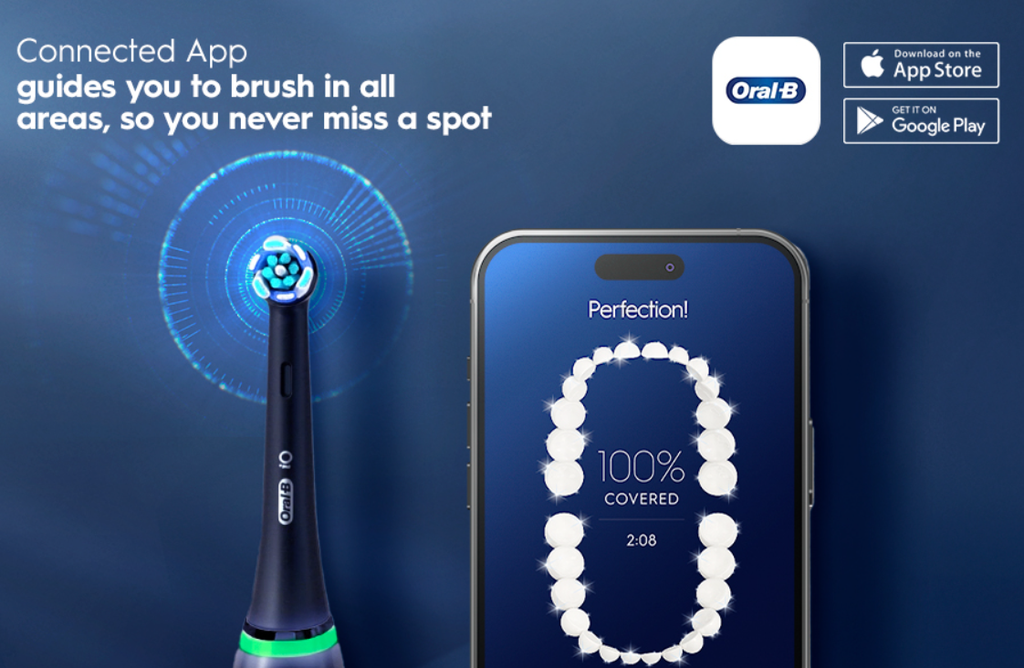
The Oral-B iO7 is a premium electric toothbrush that combines advanced cleaning technology with smart features, including Bluetooth connectivity, an interactive display, and personalized brushing feedback.
However, like many modern electronic devices, its performance also depends on software. Keeping your toothbrush updated can help maintain compatibility with the Oral-B app and potentially resolve certain software-related problems.
If you’re searching for an Oral-B iO7 firmware update, you probably want to know how to install the latest software, whether your toothbrush needs an update, or what to do when the update process fails.
Fortunately, checking for available updates is relatively straightforward. The important part is understanding the difference between updating the Oral-B smartphone app and updating the firmware installed inside the toothbrush.
In this guide, we’ll explain how Oral-B iO7 firmware updates work, how to check for available updates, what problems you might encounter, and how to troubleshoot your toothbrush safely.
What Is an Oral-B iO7 Firmware Update?
Firmware is the software embedded directly into your electric toothbrush. It controls electronic functions and helps different components communicate with one another.
Unlike the Oral-B smartphone app, which runs on your phone, firmware operates inside the toothbrush itself.
The Oral-B iO7 uses electronic controls to manage several functions, including:
- Brushing modes and motor operation.
- Interactive display functionality.
- Bluetooth communication.
- Pressure sensor feedback.
- Brushing timer functions.
- Battery monitoring and charging-related electronics.
- Communication with the Oral-B app.
A firmware update may improve or modify some of these functions, depending on the changes included in a particular release.
For example, an update designed to address a communication problem could improve compatibility between the toothbrush and certain smartphones.
However, we should remember that not every firmware update introduces new features, and an update cannot fix problems caused by physically damaged components.
Can You Update the Oral-B iO7 Firmware?
Yes. The Oral-B iO7 supports firmware updating through its connected software ecosystem when an applicable update is made available.
The toothbrush connects to the official Oral-B app using Bluetooth, allowing communication between your smartphone and the handle.
When an update is offered for your particular toothbrush, the app can guide you through the process.
There are a few important details:
- Firmware updates are not necessarily available all the time.
- Update availability can depend on the toothbrush model and existing software.
- The app’s appearance and update instructions can change between versions.
- Updating the smartphone app does not automatically mean the toothbrush firmware has changed.
- If the app does not offer an update, your toothbrush may already have the latest available firmware.
Unlike a smartphone or computer, the iO7 does not provide a conventional software-download system for manually installing firmware files.
The safest method is to use the official Oral-B app and follow any instructions displayed there.
How to Update Oral-B iO7 Firmware: Step-by-Step Guide
If you want to check whether your Oral-B iO7 needs a firmware update, we recommend following this procedure.
Step 1: Charge Your Oral-B iO7
Before beginning, make sure the toothbrush has sufficient battery power.
Firmware updates involve communication between your smartphone and the toothbrush. An unexpected shutdown during installation could interrupt the process.
For this reason, we recommend charging the toothbrush fully beforehand.
Place the handle on its compatible magnetic charger and allow it to reach an adequate charge level before proceeding.
A fully charged toothbrush reduces the risk of power-related interruptions.
Step 2: Update the Oral-B Smartphone App
The next step is making sure you have the latest version of the official Oral-B app.
On an Android phone:
- Open Google Play Store.
- Search for the Oral-B app.
- Select the official application.
- Tap Update if a newer version is available.
- Open the app after installation finishes.
On an iPhone:
- Open the App Store.
- Find the Oral-B application.
- Check whether an update is available.
- Install the update if necessary.
- Launch the application.
Keeping the smartphone app current is important because older versions may experience Bluetooth pairing problems or compatibility issues.
Step 3: Enable Bluetooth
The Oral-B iO7 communicates with your smartphone using Bluetooth.
Before attempting a firmware update, make sure Bluetooth is enabled on both devices.
On your smartphone, open the Bluetooth settings and turn the feature on.
On your toothbrush, wake the interactive display and check its Bluetooth setting.
If Bluetooth is disabled, enable it through the toothbrush’s settings.
Keep the handle close to your smartphone during the connection process.
Step 4: Connect Your Oral-B iO7 to the App
Open the Oral-B app and follow the pairing instructions.
If your toothbrush is already connected, you should be able to access its information through the app.
If it is not connected, you can normally follow these steps:
- Open the Oral-B app.
- Navigate to the toothbrush or device section.
- Select the option to connect a toothbrush.
- Wake your Oral-B iO7.
- Follow the pairing instructions.
- Confirm that the toothbrush is recognized.
Depending on the app version, the relevant section may be labeled Your Brush, Toothbrush, or Devices.
We recommend completing the Bluetooth connection before looking for firmware updates.
Step 5: Check for Available Firmware Updates
Once your toothbrush is connected, inspect the device information and any notifications displayed by the app.
If a firmware update is available for your iO7, the application may present an update notification or installation instructions.
Follow the instructions shown on your phone.
The exact location of update information can vary by app version, and a dedicated firmware-update button may not always be visible.
If the app reports that an update is available, proceed with the installation process.
If no update is offered, there may simply be no newer firmware available for your device.
Step 6: Install the Firmware Update
When an update is available, follow the instructions in the Oral-B app.
During installation:
- Keep your smartphone close to the toothbrush.
- Maintain a stable Bluetooth connection.
- Avoid closing the Oral-B app.
- Do not intentionally interrupt the installation.
- Make sure your phone has enough battery power.
- Follow any confirmation prompts appearing on the toothbrush display.
Some firmware installations may require confirmation on the handle itself.
The download and installation process can involve separate stages, so reaching the end of a download does not always mean the new firmware has finished installing.
Wait until the app or toothbrush confirms that the process has completed.
Step 7: Verify That Your Oral-B iO7 Works Properly
After the update, check that the toothbrush operates normally.
We recommend testing the following:
- The interactive display responds correctly.
- The toothbrush starts and stops normally.
- Cleaning modes can be selected.
- Bluetooth connects successfully.
- The Oral-B app recognizes your toothbrush.
- Brushing sessions can synchronize.
- The pressure sensor responds during brushing.
If everything functions correctly, the update process has likely completed successfully.
If the app offers firmware-version information, you can also compare it with any version information shown after installation.
How Long Does an Oral-B iO7 Firmware Update Take?
There is no single guaranteed installation time for every Oral-B iO7 firmware update.
The duration depends on factors such as the size of the update, Bluetooth connection quality, smartphone performance, and installation requirements.
A small software change may complete quickly, while a larger update may take longer.
The process may include several stages:
| Update stage | What happens |
|---|---|
| Update detection | The app determines whether an update is available |
| Download | The smartphone obtains the update package |
| Transfer | Firmware data is communicated to the toothbrush |
| Installation | The toothbrush applies the update |
| Verification | The app or toothbrush confirms completion |
We recommend allowing the process to finish rather than repeatedly disconnecting the toothbrush.
If the progress indicator remains unchanged for an unusually long period or displays an error, investigate the issue before starting another attempt.
Oral-B iO7 Firmware Update Not Working: Common Problems and Solutions
Although firmware updating is generally straightforward, some users experience problems during the process.
These can include failed downloads, Bluetooth disconnections, installation errors, or an update that never appears.
Let’s examine the most common situations.
Oral-B iO7 Not Showing a Firmware Update
One common concern is that the Oral-B app does not display any available firmware updates.
This does not necessarily indicate a problem.
Possible explanations include:
- Your toothbrush already has the latest available firmware.
- No new firmware has been released for your particular handle.
- Your Oral-B app needs updating.
- The toothbrush is not connected correctly.
- The app has not recognized the handle.
- A software or connectivity issue is preventing the update check.
Start by updating the Oral-B app and reconnecting your toothbrush.
If no update is offered afterward, continue using the toothbrush normally unless you are experiencing another problem.
Important: There is no reason to assume that a new firmware version must be available simply because your toothbrush has not been updated recently.
Oral-B iO7 Firmware Update Stuck at 99% or 100%
An update that appears stuck near completion can be frustrating.
However, the percentage displayed on your phone may refer to the download or transfer stage rather than the entire installation.
If progress stops:
- Check whether the toothbrush is showing an installation confirmation.
- Keep both devices close together.
- Make sure Bluetooth remains active.
- Check that the app has not displayed an error message.
- Allow the current process to finish if the devices are still responding.
If the installation explicitly fails, close and reopen the app, reconnect the toothbrush, and retry when prompted.
Avoid repeatedly resetting the handle while an installation is actively running.
If the same failure occurs during several attempts, contact Oral-B support before attempting more disruptive troubleshooting.
Oral-B iO7 Bluetooth Connection Problems
Bluetooth connection issues can prevent the app from communicating with your toothbrush.
Several factors can cause this:
- Bluetooth is disabled on the phone.
- Bluetooth is disabled on the toothbrush.
- The phone is too far from the handle.
- Necessary app permissions are disabled.
- The Oral-B app is outdated.
- The previous connection has become unreliable.
To resolve the problem, start with the simplest steps.
Turn Bluetooth off and on again on your phone, restart the app, and wake the toothbrush.
On Android, check relevant Bluetooth or Nearby Devices permissions. Some Android versions may also require location-related permissions for Bluetooth discovery.
On iPhone, verify that the Oral-B app has Bluetooth permission.
If the connection still fails, remove the existing toothbrush connection through the Oral-B app where possible and follow the pairing procedure again.
Oral-B iO7 Update Fails Repeatedly
Repeated firmware installation failures may be associated with connection interruptions, application problems, or a device-specific software issue.
Try the following troubleshooting sequence:
- Charge the toothbrush fully.
- Update the Oral-B app.
- Restart your smartphone.
- Reconnect the toothbrush.
- Disable restrictive phone battery-saving settings temporarily.
- Retry the update if the app offers it.
We recommend using a stable internet connection for downloading the update package.
Bluetooth is responsible for communication with the toothbrush, but the app may require internet access to obtain the necessary software.
If the problem continues, Oral-B customer support can help determine whether the handle requires servicing.
How to Reset the Oral-B iO7 After a Software Problem
Sometimes, a toothbrush may behave unexpectedly even after basic troubleshooting.
For example, you might experience unusual display behavior, incorrect settings, or persistent communication problems.
In these situations, a factory reset may help.
However, a factory reset should not be your first response to a failed firmware update.
How to Factory Reset the Oral-B iO7
The iO7 has an interactive display that can provide access to device settings.
For models with the relevant menu, the general procedure is:
- Wake the toothbrush display.
- Open the Settings menu.
- Navigate to Factory Reset.
- Select the reset option.
- Confirm the action using the toothbrush controls.
- Allow the toothbrush to restore its initial settings.
Afterward, reconnect the handle to the Oral-B app.
Remember that resetting the toothbrush can remove personalized settings and may affect locally stored brushing information that has not synchronized.
Also, factory resetting the toothbrush does not necessarily remove an installed firmware update or restore an older firmware version.
If the toothbrush is stuck during an active firmware installation, seek official support rather than forcing a reset.
How to Check the Oral-B iO7 Firmware Version
Some users want to know which firmware version their toothbrush currently uses.
This is particularly useful when troubleshooting a problem or communicating with technical support.
The first place to check is the Oral-B app.
Connect your toothbrush and inspect the device details, settings, or information screens.
Depending on your app version, certain software or device information may be available.
However, not every app version necessarily displays a clearly labeled firmware-version number.
We should also distinguish between two different types of information.
| Information | Meaning |
|---|---|
| Oral-B app version | Software version installed on your smartphone |
| Toothbrush firmware version | Internal software running on the iO7 |
| Toothbrush model or type number | Hardware identification used for support |
| App update notification | Indicates an update to the smartphone application |
| Firmware update notification | Indicates an available software update for the toothbrush |
If you cannot locate the toothbrush’s firmware version, that does not automatically mean your device is outdated.
For technical support, the handle’s model or type number can also help identify the correct product variant.
What Are the Benefits of Updating Oral-B iO7 Firmware?
A firmware update can potentially improve how certain electronic functions operate.
However, the actual benefits depend on the changes included in the specific release.
1. Improved Bluetooth Connectivity
The iO7 relies on Bluetooth to communicate with the Oral-B app.
If an update addresses a known communication issue, it may help improve connection reliability.
That can be useful when you regularly use the app to monitor brushing sessions.
2. Software Bug Fixes
Electronic devices can occasionally experience software-related problems.
Depending on the firmware release, updates may address unexpected behavior or other identified bugs.
For example, a software correction could improve a function affected by a previously identified issue.
3. Better App Compatibility
The Oral-B smartphone app continues to evolve.
Firmware updates may help maintain compatibility with supported app functions or connected-device behavior.
However, updating the smartphone app remains a separate and important part of maintaining compatibility.
4. Improved Reliability
Firmware is involved in coordinating several electronic components.
If a particular release contains reliability improvements, installing it may help the toothbrush operate more consistently.
That does not mean every update will improve brushing performance or battery life.
5. Access to Applicable Software Improvements
Some updates may modify existing functionality or introduce software improvements.
Nevertheless, we should not assume that firmware updates can unlock cleaning modes or hardware-dependent features that are exclusive to other Oral-B iO models.
The iO7’s physical hardware and product configuration still determine its supported capabilities.
Can a Firmware Update Fix Oral-B iO7 Battery Problems?
Battery problems are another reason owners look for software updates.
For example, your toothbrush might show an unexpected battery percentage or shut down earlier than expected.
A firmware update could potentially help if the problem is caused by a software issue affecting battery reporting or power management.
However, there is an important distinction between software problems and battery deterioration.
A firmware update cannot repair a worn-out battery.
If your toothbrush has been used regularly for several years, reduced battery capacity may be caused by normal battery aging.
Other possible causes of battery problems include:
- A faulty charging base.
- Inadequate charging.
- Battery deterioration.
- Internal electronic faults.
- Charging interruptions.
- Incorrect battery-level reporting.
Before assuming firmware is responsible, charge the toothbrush fully and observe its behavior during normal use.
If the device repeatedly shuts down despite being charged, additional technical diagnosis may be necessary.
Oral-B iO7 Firmware Update vs Oral-B App Update
One of the most common misunderstandings is assuming that updating the Oral-B app automatically updates the toothbrush firmware.
These are two separate processes.
The smartphone application runs on Android or iOS, while the firmware operates inside the toothbrush.
| Feature | App update | Firmware update |
|---|---|---|
| Installed on | Smartphone | Toothbrush |
| Main purpose | Updates mobile application functions | Updates internal device software |
| How it is installed | App Store or Google Play | Through a supported Oral-B update process |
| Bluetooth required | Not for downloading the app update | Yes, for communicating with the toothbrush |
| Internet required | Usually for downloading | Usually for obtaining the update package |
| Available regularly | App releases can occur frequently | Availability depends on device releases |
| Changes toothbrush hardware | No | No |
We recommend keeping the Oral-B app updated even when no new firmware is available.
This can help reduce compatibility problems and ensure you have access to the latest supported app features.
Can You Update the Oral-B iO7 Without the App?
For normal owners, the official Oral-B app is the appropriate method for managing available firmware updates.
The iO7 does not provide a standard user-accessible USB firmware installation method or a conventional computer-based update utility.
You should not attempt to install firmware downloaded from unofficial websites or use software intended for a different Oral-B model.
Unsupported modifications can cause serious problems, including making the toothbrush unusable.
If the Oral-B app cannot complete an available update, the safest alternative is to contact Oral-B support.
They can advise whether troubleshooting or professional service is appropriate.
Does the Oral-B iO7 Automatically Update Its Firmware?
The Oral-B app may identify available updates when it communicates with a compatible toothbrush.
However, that does not mean every iO7 firmware installation occurs silently or automatically.
Some updates may require user interaction or confirmation.
We recommend checking the app periodically, especially if you notice a software-related problem.
For routine maintenance, there is no need to search for firmware updates every day.
Keeping the app current and allowing your toothbrush to connect normally is a reasonable approach.
How Often Should You Check for Oral-B iO7 Firmware Updates?
There is no universal firmware-update schedule for the Oral-B iO7.
Unlike toothbrush head replacement, firmware maintenance does not follow a fixed monthly interval.
A practical approach is to check when:
- You first connect a new toothbrush.
- You install a significant Oral-B app update.
- You experience repeated Bluetooth connection problems.
- The app displays an update notification.
- You notice unusual software behavior.
- Oral-B support recommends checking for an update.
If the toothbrush is working normally and no update is available, there is generally no need to take additional action.
Tips to Prevent Oral-B iO7 Firmware Update Problems
A little preparation can reduce the chance of an interrupted update.
We recommend following these practices.
Keep Your Toothbrush Charged
Always begin with adequate battery power.
A low battery creates an unnecessary risk of interruption during firmware installation.
Keep Your Smartphone Nearby
Bluetooth connections are more reliable when devices remain close together.
Place your smartphone near your toothbrush during the installation process.
Avoid Interrupting the Update
Do not deliberately shut down the toothbrush, force-close the app, or disconnect the phone while the firmware is actively installing.
If an update appears stuck, check for confirmation prompts and error messages before taking further action.
Maintain a Stable Internet Connection
A reliable internet connection helps the app download any required update package.
Once downloaded, communication with the toothbrush takes place through its supported wireless connection.
Use Official Software
Always use the official Oral-B smartphone application.
Avoid unofficial firmware files, modified applications, or unsupported installation tools.
Keep Your Phone Updated
Smartphone operating-system updates can affect app permissions and Bluetooth behavior.
Keeping your phone compatible with the current Oral-B app can help prevent connection problems.
When Should You Contact Oral-B Support?
Most app connection problems can be investigated using basic troubleshooting.
However, some situations require professional assistance.
Consider contacting Oral-B support if:
- A firmware update repeatedly fails despite troubleshooting.
- The toothbrush becomes unresponsive after an installation attempt.
- The interactive display stops functioning.
- The handle no longer connects to compatible smartphones.
- The toothbrush shuts down unexpectedly.
- Factory resetting does not resolve an unrelated configuration problem.
- The app reports an error that cannot be cleared.
Before contacting support, gather some useful information:
- Your toothbrush model: Oral-B iO7.
- The handle’s type number.
- Your smartphone model.
- Your Android or iOS version.
- Your Oral-B app version.
- Any firmware or installation error messages.
- A description of the steps you have already tried.
This information can make troubleshooting more efficient.
If your toothbrush is still covered by its applicable warranty, support may also be able to explain your repair or replacement options.
Frequently Asked Questions About Oral-B iO7 Firmware Updates
1. How do I update the firmware on my Oral-B iO7?
To update your Oral-B iO7 firmware, charge the toothbrush, install the latest Oral-B smartphone app, enable Bluetooth, and connect the handle. If an applicable firmware update is available, follow the installation instructions displayed in the app. Some updates may also require confirmation on the toothbrush display.
2. Why is my Oral-B iO7 firmware update not showing?
An update may not appear because your toothbrush already has the latest available firmware, no new release is available for your handle, or the app has not connected properly. Start by updating the Oral-B app and checking the Bluetooth connection. A missing update notification does not necessarily indicate a malfunction.
3. What should I do if my Oral-B iO7 firmware update fails?
Check that both devices have enough battery power and maintain a stable Bluetooth connection. Restart the Oral-B app, reconnect the toothbrush, and retry if the app offers the option. If installation repeatedly fails, contact Oral-B support rather than attempting unofficial firmware installation.
4. Will updating the Oral-B iO7 improve battery life?
A firmware update might improve battery-related behavior if a particular release addresses a software issue. However, it cannot restore capacity to an aging or damaged battery. Actual battery improvements depend on the specific firmware changes, and they should not be assumed without confirmation.
5. Can I use my Oral-B iO7 without updating its firmware?
Yes. If your Oral-B iO7 is functioning normally, you can generally continue brushing even when you have not installed a newly available firmware update. The toothbrush does not require an active smartphone connection for ordinary brushing. Nevertheless, we recommend installing applicable official updates when offered, particularly when they address problems you are experiencing.
Conclusion: Is Updating Your Oral-B iO7 Firmware Worth It?
The Oral-B iO7 firmware update process is an important part of understanding how to maintain the toothbrush’s connected features.
Keeping the software current may help resolve certain compatibility issues, correct software problems, and maintain reliable communication with the Oral-B app.
The safest approach is simple: keep the official smartphone app updated, charge your toothbrush, maintain a stable Bluetooth connection, and follow the instructions provided when a firmware update becomes available.
If your iO7 is working properly and the app does not offer an update, there is no reason to assume something is wrong.
And if an update repeatedly fails, avoid unofficial installation methods or unnecessary factory resets. Professional support is the better option for persistent firmware problems.
Ultimately, regular cleaning, proper charging, timely brush-head replacement, and sensible software maintenance will help you get the most from your Oral-B iO7 over the long term.